Wireless (In)security in Delhi NCR
— Wi-Fi, pwnagotchi, raspberry pi, Delhi, NOIDA — 8 min read
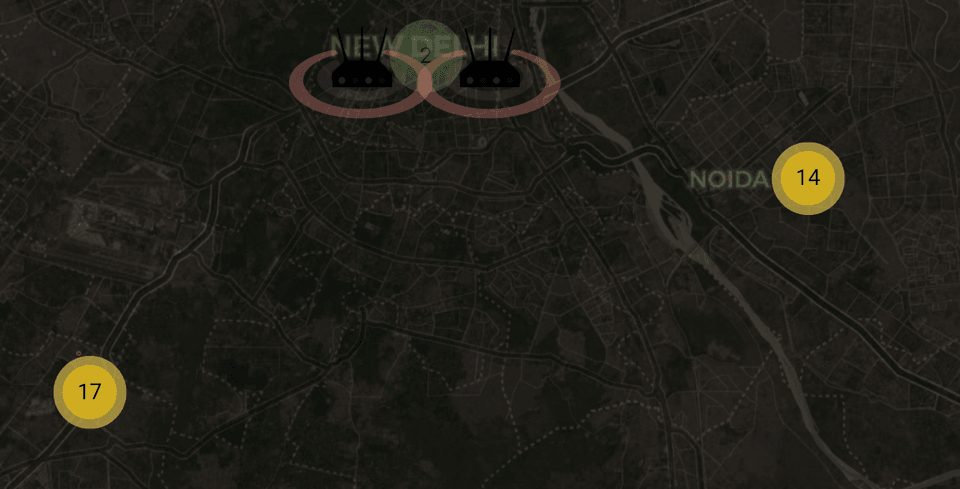
I heard about the pwnagotchi project from Alex Lynd while he was on Hackster Café podcast. And it fascinated me almost immediately. After some research and convincing myself to purchase a Raspberry Pi for 5X original price(global chip shortage still persisting in June 2023), I started reading more. Here I make my best effort to document my time with the pwnagotchi and eventually draw some conclusions of the Wi-Fi security practices of Delhi and Non-Capitalized Regions surrounding this 9000 AQI capital city.
For those not familiar, a pwnagotchi device is essentially bettercap installed on a Pi Zero, allowing you to capture Wi-Fi packets on the go. The captured Wi-Fi packets can be automatically uploaded to third-party services, and then analysed to reveal weak Wi-Fi passwords (PSKs).
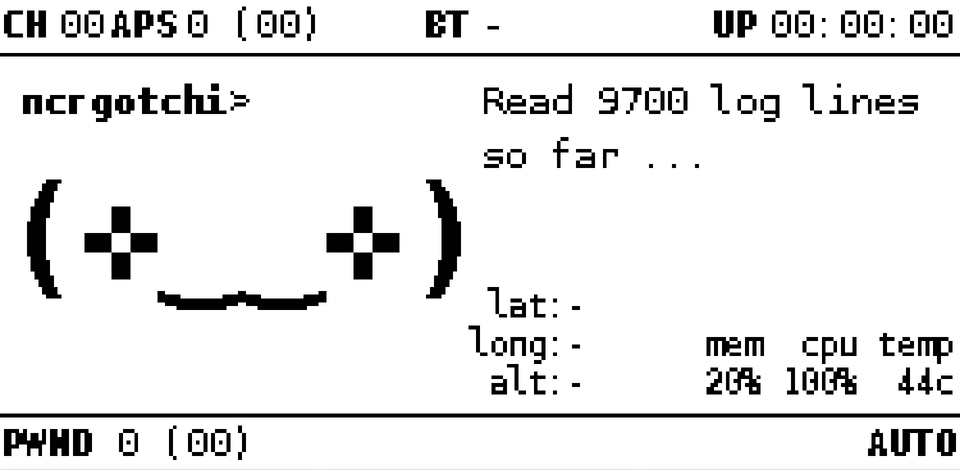
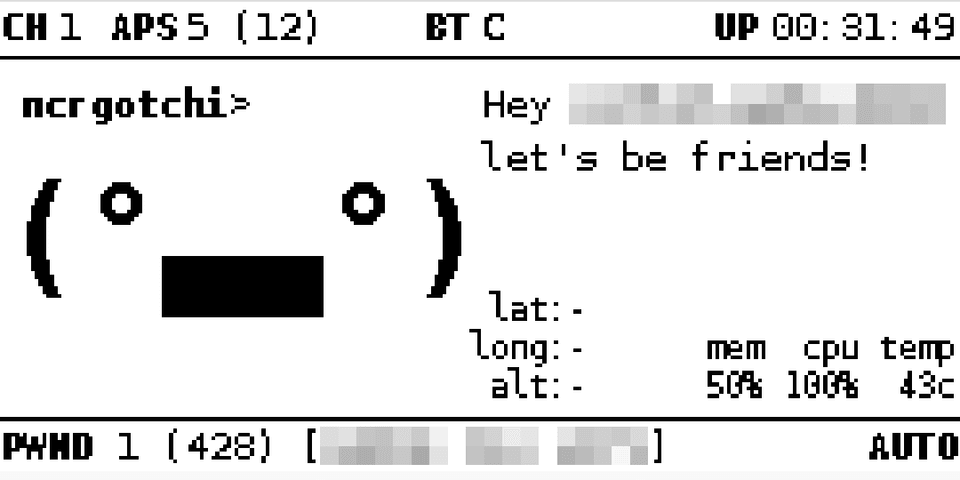
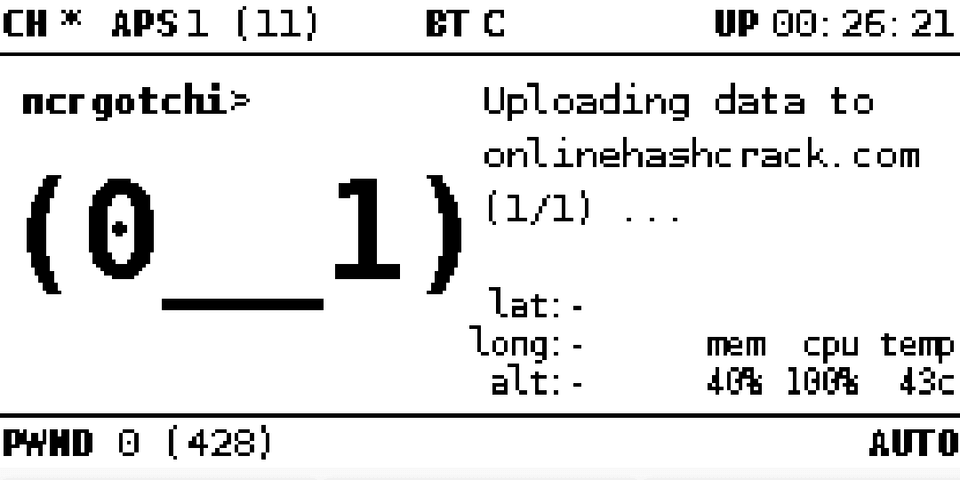
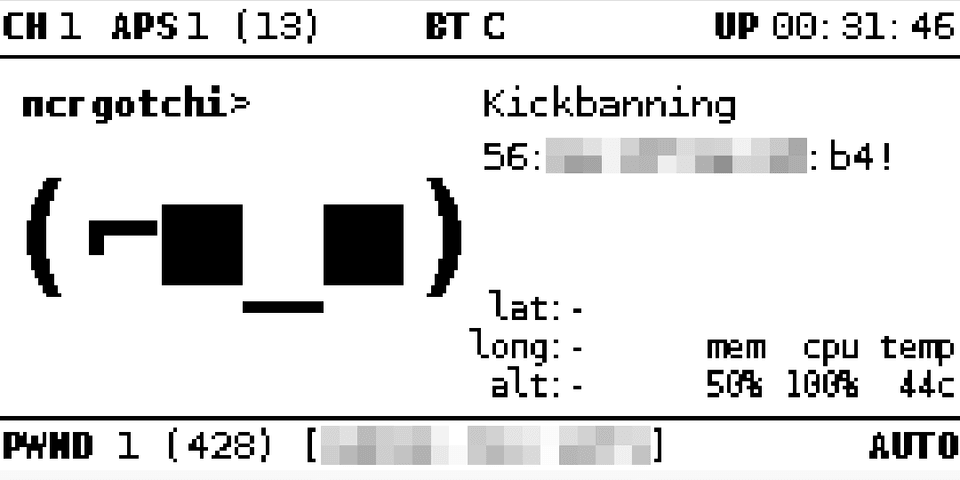
The pwnagotchi device I was carrying around in my backpack looked like this:
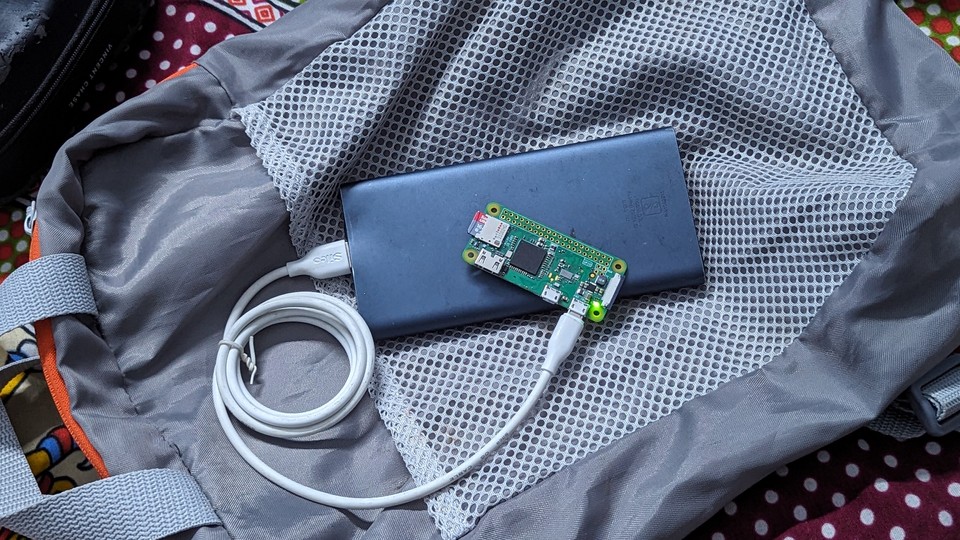
While I spent a week walking around, the pwnagotchi device was attempted to capture wireless handshakes to identify networks with weak passwords. My goal was to see the easiest Wi-Fi passwords Wi-Fi owners are using in 2023.
Installation
Unfortunately, the pwnagotchi project didn’t receive too much TLC recently as the main developer, evilsocket, moved on to other projects. I tried the official release first, but I later realized the AI model doesn't start because of a library error and fixing it is super annoying.
In the end, I chose the wpa-2/pwnagotchi fork, which is the closest to the original evilsocket/pwnagotchi repository. Although both of them are not being actively developed, the ‘wpa-2’ fork has the numpy patch for AI, so I ended up using this one.
For the basic pwnagotchi installation and configuration, they are well covered on the official website. Instead of repeating the installation steps, I am going to share how I use it in the following sections.
Bug Fixes
First, I tried to run an ‘apt update’, but it kept crashing the device and I had to restart it by replugging. I suspect the command might be crashing the device, although I haven't seen this issue on any of the forums.
Timekeeping(TO DO)
The Pi Zero does not come with an onboard hardware clock, although this does not affect its ability to capture handshakes. But to prevent the internal clock go out of sync, I can either use the recommended RTC hardware module for the Pi Zero, or install a lightweight Chrony NTP daemon to keep the clock accurate:
apt install -y chrony
And then, change the default timezone to my local one:
timedatectl set-timezone Asia/Kolkata
Swap File
As the pwnagotchi tend to use a large amount of memory, I found the default swap file can be given more room to breathe. To enlarge the swap space, I changed CONF_SWAPSIZE parameter to 500 megabytes in the /etc/dphys-swapfile file to keep the system happy.
CONF_SWAPSIZE=500
This setting requires the pwnagotchi to restart to take effect.
Bettercap
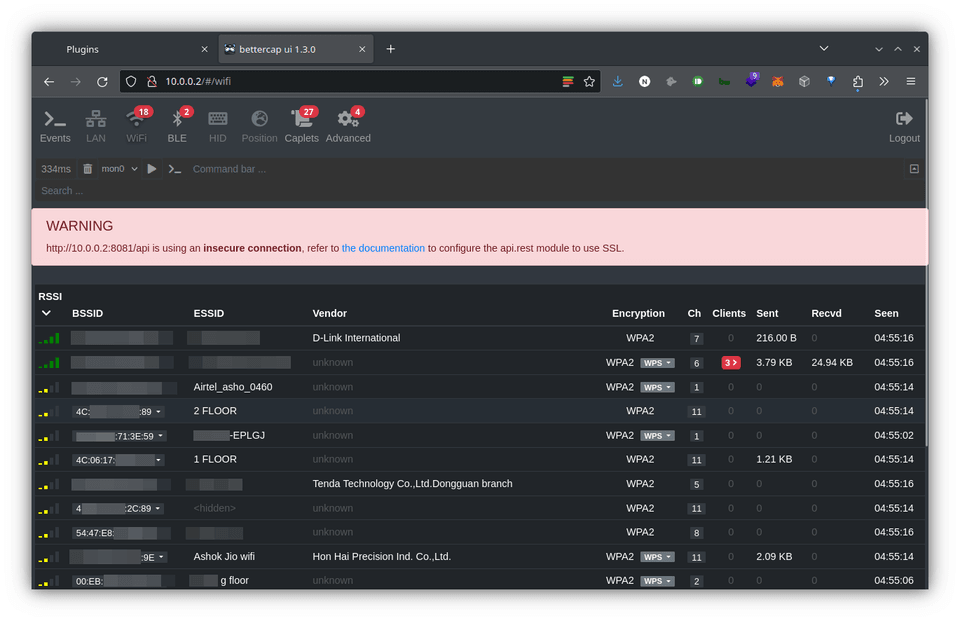
When the pwnagotchi is booted in Manual mode, the Bettercap Web UI becomes available on port 80. The bettercap UI allows monitoring wireless events, although I never ended up using it.
Remote Access
There are two ways to connect to the pwnagotchi over a network:
- through the micro-USB cable; or
- via Bluetooth tethering.
In the first case, the Pi Zero is connected to a PC over USB such as a laptop. This scenario allows simple SSH access from the laptop to the Pi Zero over USB-over-Ethernet. Obviously, this makes it difficult to carry the pwnagotchi around, as the cable needs to be connected to a clunky device.
As for the Bluetooth option, the pwnagotchi can access the mobile internet while it is powered by a power bank. And with Bluetooth Network Encapsulation Protocol (BNEP), I can access the dashboard and shell. This is more hacker-y, and hence my preferred way.
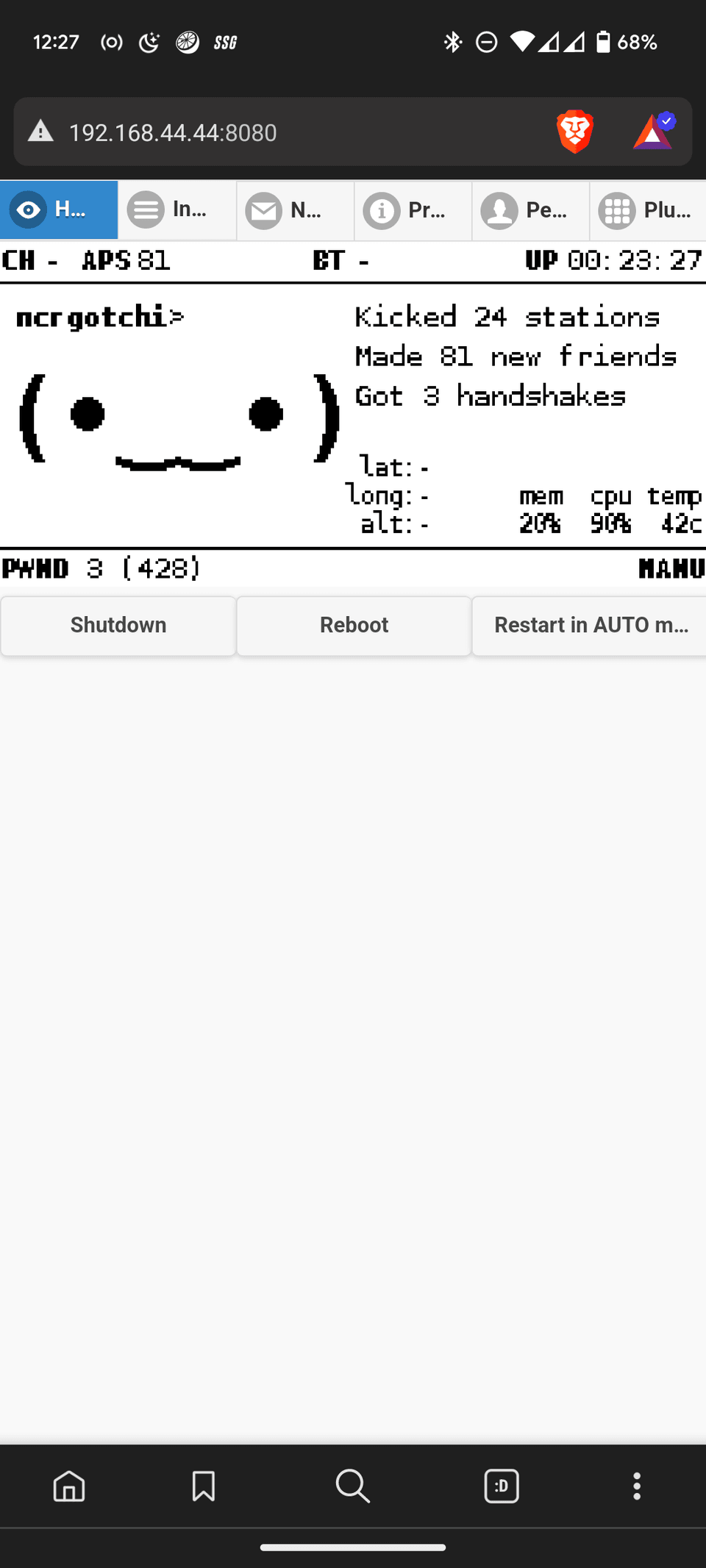
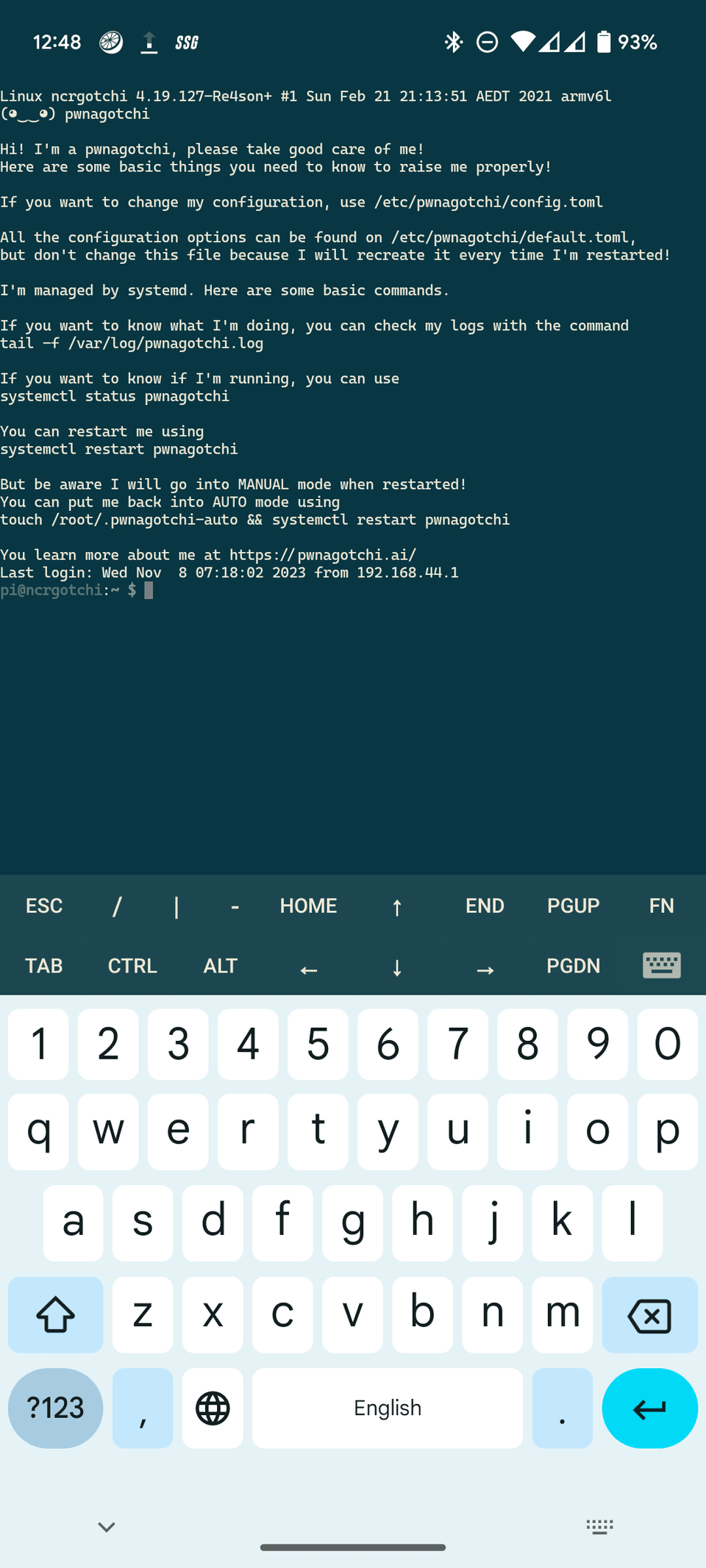
As mentioned in the Known problems for bluetooth, I had to manually pair it with my phone the first time.
Hardware Temperature
On a related note, it is worthwhile monitoring the hardware temperature when the pwnagotchi is stuffed away in a backpack, as the Pi Zero tends to get hot in poorly-ventilated areas. The temperature value is also available from the command-line over SSH:
/opt/vc/bin/vcgencmd measure_temp
GPS issues(IN PROGRESS)
Only the net-pos plugin seem to be working as of now, and updates a single location for a bunch of handshakes, I only used it once, just to get a banner for this post.
PSK Auditing Plugins
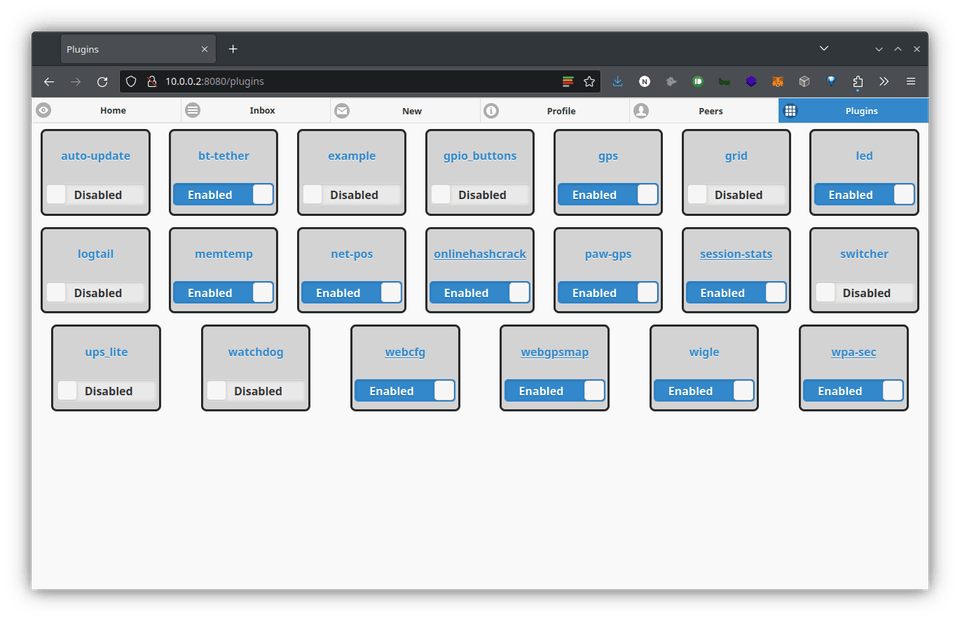
The pwnagotchi comes with a myriad of plugins of varying quality. The two most important ones to enable are wpa-sec and OnlineHashCrack. The pwnagotchi can automatically upload the captured handshakes to these two online Wi-Fi handshake auditing services. If the password is simple enough, these two online services can find it within 24 hours.
Enable the password-auditing plugins with the following:
pwnagotchi plugins enable onlinehashcrack
pwnagotchi plugins enable wpa-sec
OnlineHashCrack does not require a user account, but it still needs a valid email address to upload and the handshakes. You will need to enter this email address on OnlineHashCrack.com to access the results.
Add an email address by running:
pwnagotchi plugins edit onlinehashcrack
Then your preferred email address should be added to the main.plugins.onlinehashcrack.email setting.
Similarly, wpa-sec requires an API key (obtained from here) to be added to main.plugins.wpa-sec.api_key:
pwnagotchi plugins edit wpa-sec
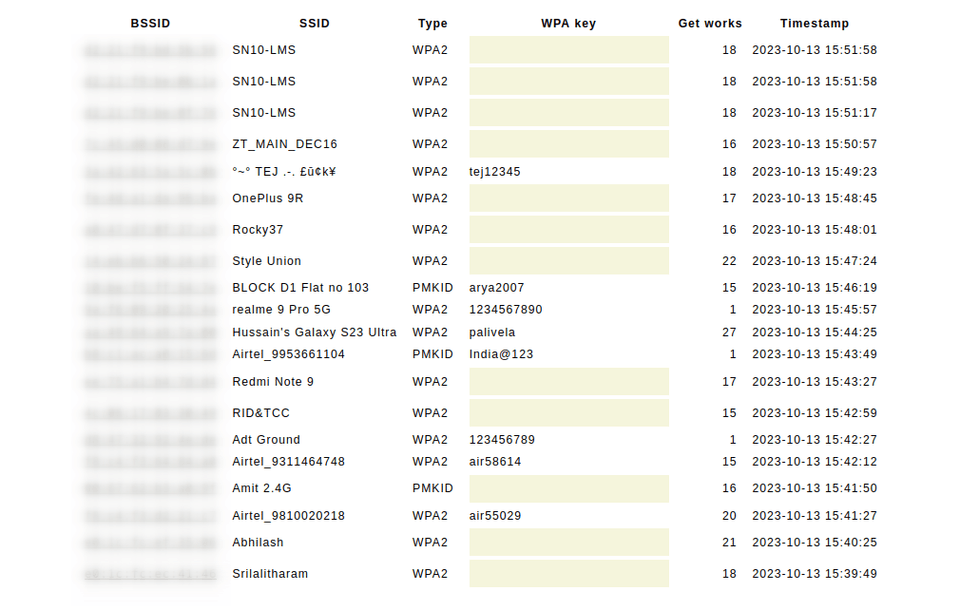
The results will be available at once the pwnagotchi starts uploading them:
Hash-Cracking using Cloud GPUs
The Wi-Fi handshakes are also available in /root/handshakes on the pwnagotchi device for offline analysis with the hashcat toolkit.
Using Genesis Cloud
I rented a server in Norway with GPU access using Genesis Cloud. I always wanted try cracking passwords because I had never done so before. It took a while to get something with attached GPU, since all cloud providers are limiting access to GPU servers. Everyone's trying to do something with AI, including me. GPUs are being used for AI and crypto shenanigans. NVIDIA are stocks booming.
After getting the approval for 2 GPUs, I experimented with a bunch of options in hashcat and quickly realized how setting a long and complex password significantly increases the time required for an attacker to crack it.

The Results
After a month of roaming around parts of NOIDA & Delhi, the little pwnagotchi managed to collect Wi-Fi handshakes from 428 different wireless access points. Due to various networking issues, about 160 handshakes were submitted to the OnlineHashCrack and wpa-sec handshake-auditor services.
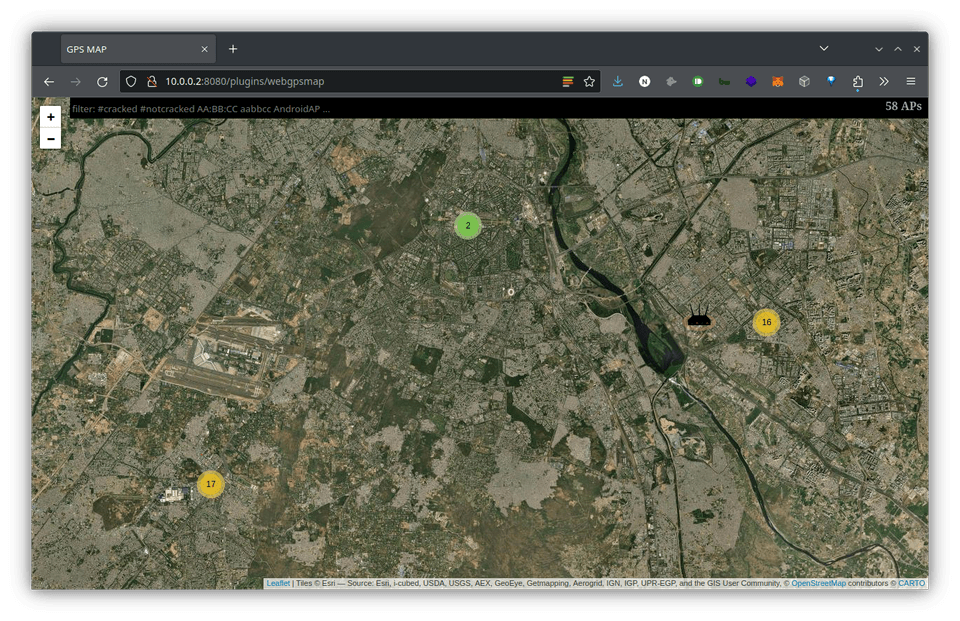
In the end, the two online services found 36 Wi-Fi access points with easily-guessable wireless passwords around the area.
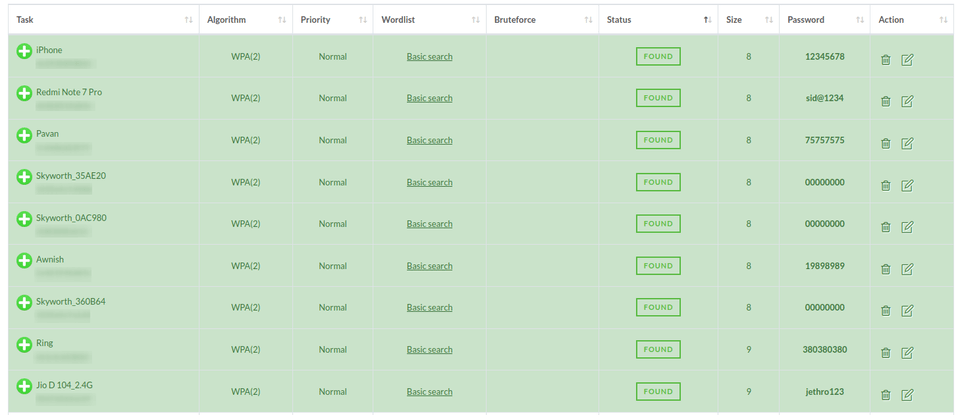
Having seen the 36 weak passwords and their corresponding access points, I managed to draw the following conclusions:
- Disable the insecure Wi-Fi Protected Setup (WPS) feature on your home router. The 8-digit-long numbers-only is cracked instantly. (4 APs)
- If you have a pocket router, or use the personal hotspot feature on your phone, choose a strong password. (10 APs)
- If you have a Wi-Fi router for your home or business, ensure it is not named after the make and model of your router, and definitely not your house number. (9 APs)
- Ensure you are not including you own mobile number(or anyone else's) in the network name. (3 APs)
- If you own smart IoT devices for automation or home security systems, change their default login credentials to something stronger. (4 APs)
- If you are a wealthy individual, ensure your AP name is NOT named after yourself and your wireless password is not easily guessable. (8 AP)
Conclusion
Although Wi-Fi security is a well-researched, well-understood and over-communicated area, everyone seems to configure Wi-Fi networks as it was still the early 2000s(not that I know how it was at the time).
Without boring anyone to death by stating the obvious: WEP, WPA, weak PSKs are bad, while WPA2, WPA3 and strong passwords must be a priority.
To secure your Wi-Fi networks, my practical advice is:
- Choose a strong password to protect your wireless network, like L7:2DFbB9BD:tD5 strong;
- Use WPA3 if available, and choose WPA3-compatible routers and devices;
- Use certificate-based wireless authentication if available;
- Disable the Wi-Fi Protected Setup (WPS) feature on your router;
- Randomly name your wireless access points to hide their purpose (e.g. networks for Point-of-Sale systems);
- Hire a professional to secure your network if these things look complicated to you.
As for the pwnagotchi, it's a fun project still tinkered with despite the recent inactivity around its development. Once the small bug fixes are applied, the pwnagotchi just simply does its job as intended, while making the cutest faces.